
Login
A login flow built for both convenience and security.
Ways to log in
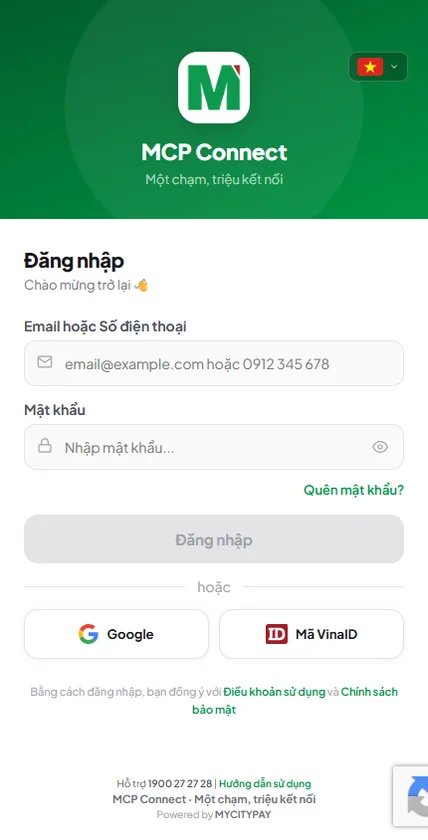
On the login screen at connect.mycitypay.com, you have several ways to get started:
- Google (recommended): tap "Continue with Google" and pick an account — a new account is created automatically on first use, no password to remember, and your avatar and display name are pulled straight from Google.
- Email & password: enter your email and password. If the email isn't registered yet, you'll be guided through creating an account and sent a verification email.
- VinaID code: for users with the VinaID mobile app — select the "VinaID Code" tab and enter your ID and password, or open the VinaID app and tap "Connect" for a one-tap login straight into your browser. On your first login this way, you'll be asked to set a separate password for your account.
- Phone number: if your account was created by claiming a physical card with a phone number, enter your phone number (with or without spaces, +84 or 84 are both recognized) and password into the same "Email or phone" field — no separate tab needed, the icon next to the field automatically switches from an envelope to a phone icon once it recognizes a valid number. If you've never set a password (a new account created by claiming a card), see "Forgot password — Phone account" below to set one for the first time.
The Dashboard
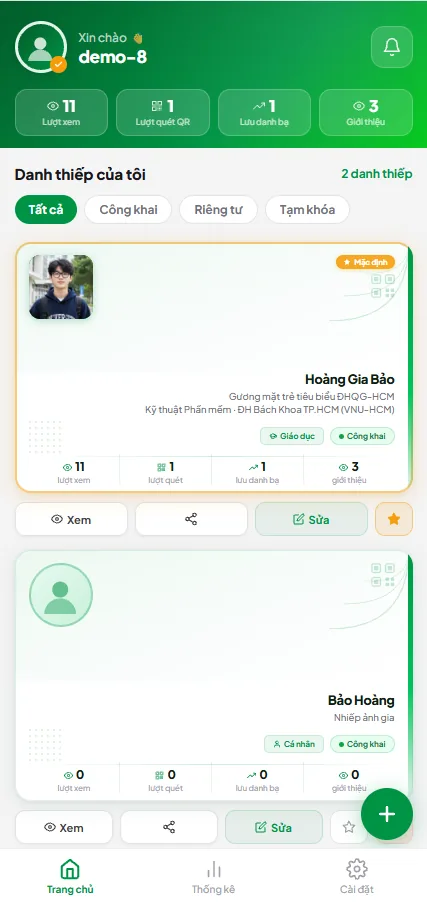
Right after logging in, you land on the Dashboard — your control center:
- Top navigation bar: quick access to statistics, account settings, or the admin area if you have access.
- Quick stat cards: total views, QR scans, and contact saves across every card you own.
- Card list: every card you've created (personal, work, organization...), each with shortcuts to edit info, change design, and copy the share link or QR code.
Notifications & org invites
The bell icon in the top bar is your notification inbox. When a business or school invites you to join, the bell lights up with a count of pending invites. Tap it to see the details — the organization's name, and the department and role assigned to you.
- Accept: you join immediately, your account is upgraded to the organization's plan, and a professional work card is created for you automatically.
- Decline: the invite is cancelled and your account stays unlinked from that organization.
- Notifications don't disappear on their own — the red badge stays until you accept or decline.
Notification channels
Go to Account Settings to choose how you want to be notified — especially useful for meeting schedules and check-in results:
- In-app: badges and popups right on the web interface while you're logged in.
- Zalo OA: automatic messages to your personal Zalo — link it once by tapping "Connect Zalo account" in Settings and confirming.
- Email: notifications sent to your registered email inbox.
Forgot password — Phone account
Accounts that log in with a phone number don't use email, so you reset your password via an SMS OTP instead:
- On the Login screen, tap "Forgot password?" and enter your account's phone number.
- Tap "Send code" — the system texts a 6-digit OTP to your phone.
- Enter the OTP you received and confirm — you can request a new code after 60 seconds if needed.
- You'll be logged in automatically and taken to the Update password screen — enter a new password (at least 8 characters) to finish.
Forgot password — Email account
If you log in with email & password and forget it, follow these steps to reset it:
- On the Login screen, tap "Forgot password?" below the password field.
- Enter the email your account is registered with, then tap "Send reset link".
- Check your inbox (including Spam/Junk) — you'll receive an email with a password reset link.
- Tap the link in the email to open the Update password screen.
- Enter a new password (at least 8 characters), confirm it, then tap "Update password".
- Your password is changed — you'll be redirected to the main screen automatically after a few seconds.
Note: If the email doesn't arrive after a few minutes, double-check the email address you entered, or try resending the link.
Forgot password — VinaID account
VinaID accounts don't use email for password resets, so no reset link can be sent by email. Instead:
- On the VinaID login screen, tap "Forgot password?".
- Open the VinaID app on your phone → select MCP Connect → choose the account to log in.
- You'll be logged in to MCP Connect automatically.
- The Update password screen appears automatically — enter your new password.