
Guide
Share & save card
Multiple sharing methods make sure your contacts get your info fast, on any device.
Sharing from the physical card
If you have a physical MCP Connect card (NFC/QR), others can open your card in 2 ways:
- QR code printed on the card — the other person scans it with their Camera app or Zalo and your card opens instantly. This QR code is fixed and never changes, even if you later update your phone number or company — safe to print on the card, a standee, or an event backdrop.
- NFC tap — a simple tap of the card against the back of a customer's phone (iPhone 7+ or NFC-enabled Android) opens your card page instantly, no app or scanning required.
Sharing from your phone
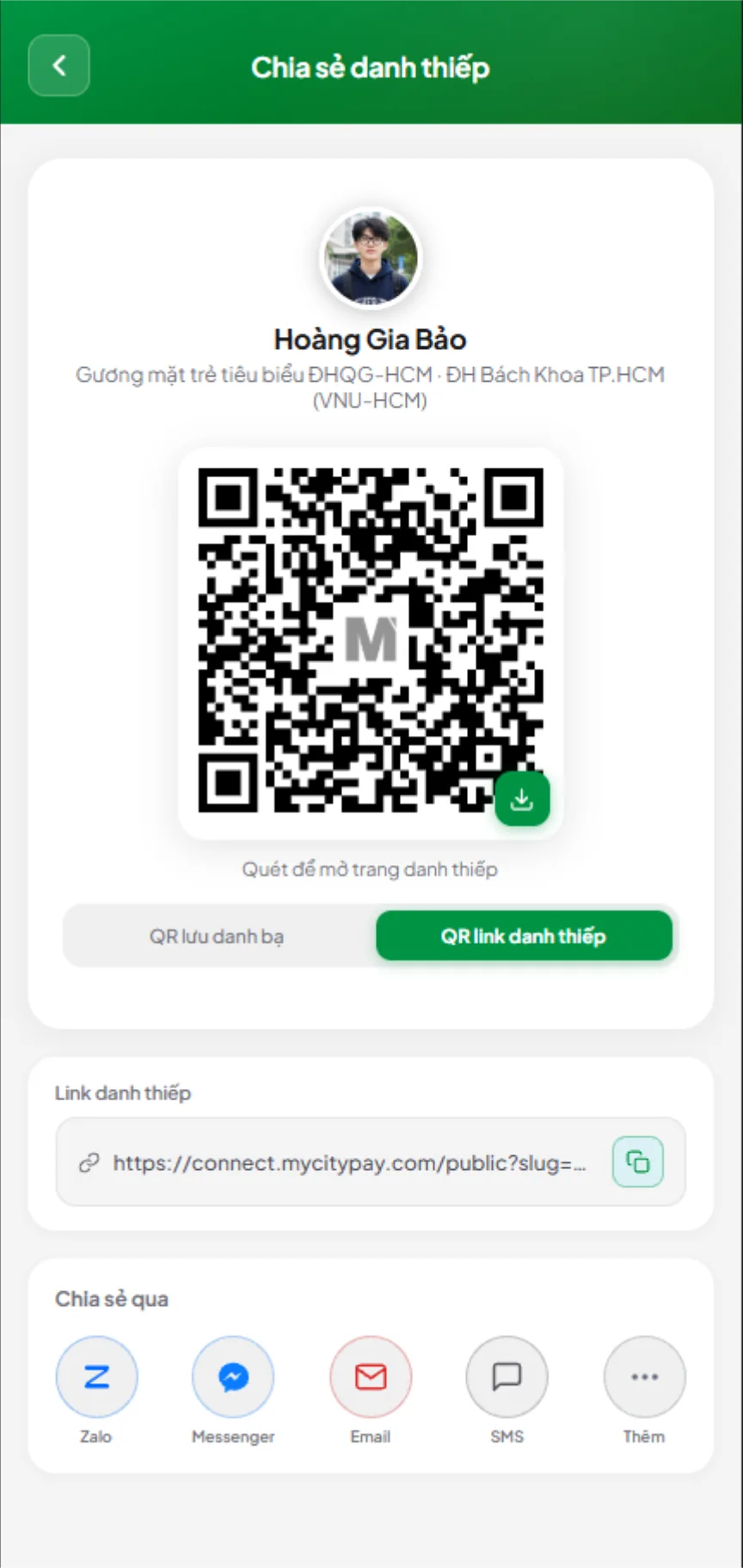
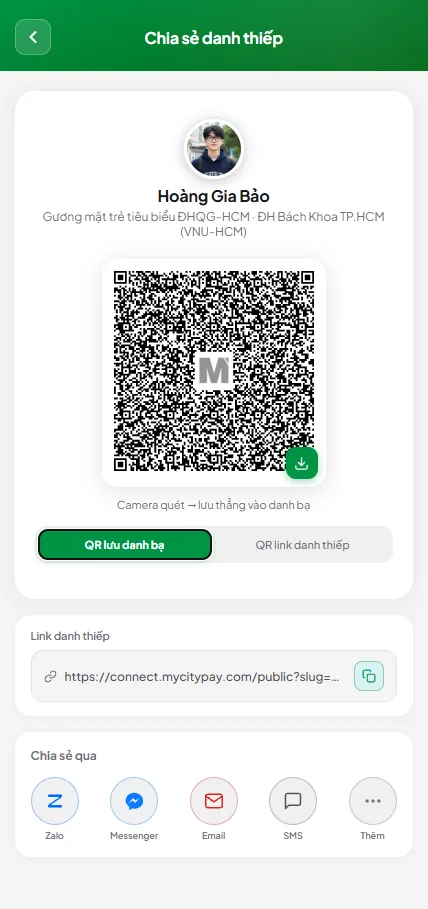
Don't have the physical card on hand? You can still share it straight from your phone in 3 ways — open "Share card" in the app to see 2 QR code types:
- Card-link QR — the default tab when you open "Share card"; hold your screen up for the other person to scan with their Camera app or Zalo, and your card page opens right in their browser. This is a static QR — its content only changes if you change your own username, it doesn't refresh or expire over time.
- Save-to-contacts QR — switch to this tab to get a QR that encodes your contact details directly; the other person scans it with their Camera app and their phone offers to save it straight to contacts, no browser needed.
- Send your card link — your card gets a short, memorable link like connect.mycitypay.com/yourname, perfect for an email signature or your bio on Zalo, Facebook, LinkedIn, or TikTok. When shared in a message, the system automatically generates a preview image showing your correct name, title, and photo.
Saving a card to contacts
When someone taps "Save card," the system exports a standard vCard 3.0 file (optimized for both iPhone and Android) containing your full name, title, organization and department, phone and email, profile photo, and a note with a link back to your personal page.
Saving on iPhone
Steps to save a card to your iPhone contacts:
- Scan the QR code on the card with the Camera app, or tap NFC, to open the card page.
- On the card page, tap "Save card," then open the contact preview screen showing 3 options: "Share Contact," "Create New Contact," and "Add to Existing Contact" — choose "Create New Contact."
- Review the pre-filled details (phone, email, homepage, company...), then tap the checkmark in the top-right corner to save if nothing needs changing.
- Open the Contacts app to confirm the card was saved successfully.
Saving on Android
Steps to save a card to your Android contacts:
- Scan the QR code on the card with the Camera app, or tap NFC, to open the card page (if scanning via Zalo, tap "Open link" when prompted to open the card page in your browser).
- On the card page, tap "Save card" — the system downloads a contact file (.vcf format).
- Open the downloaded file — a contact preview appears with your photo and full contact details (phone, email, homepage, company...) — tap it to save the contact straight into Google Contacts on your device.
- Open the Contacts app to confirm the card was saved successfully.