
Claim your physical card
How to activate and link your physical MCP Connect card (NFC/QR) — issued by your organization or purchased by you — to your account.
What is a physical MCP Connect card
A physical MCP Connect card (with an NFC chip and a QR code) reaches you one of two ways: issued by your organization (company, school...), or purchased directly by you through an official distribution channel. Either way, it needs to be "claimed" — linked to an account — before it can be used to share your digital card; this only needs to be done once per card.
- Standard card — a plastic card the size of a bank card, with an NFC chip and a QR code printed on the back.
- Keychain — same NFC/QR technology, in a compact keychain form factor that's easy to carry every day.
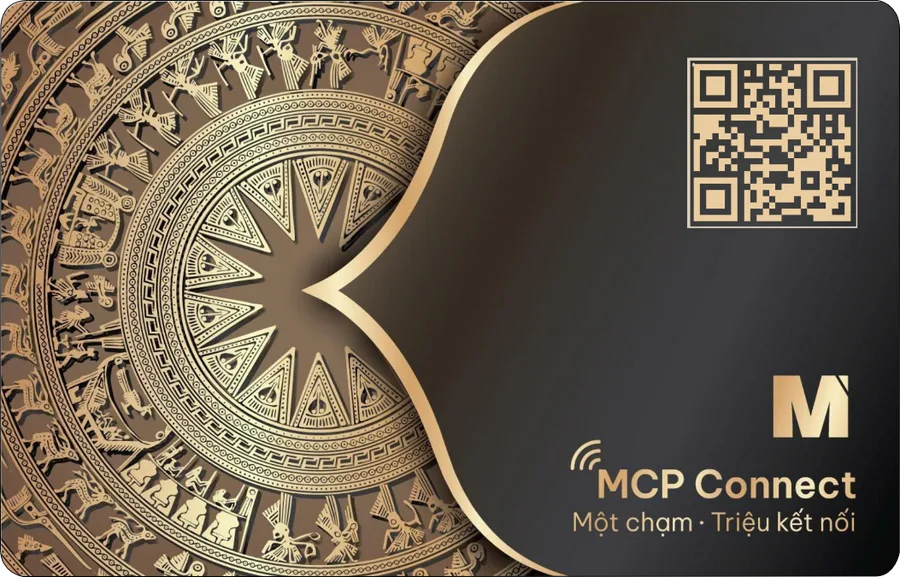
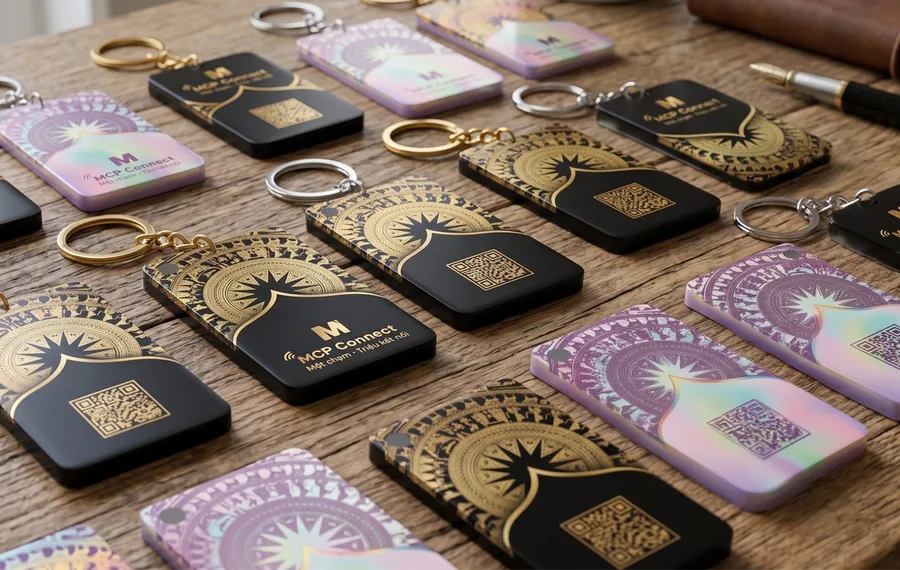
Steps to claim your card
Follow these steps:
- Tap the card against the back of your phone (NFC) or scan the QR code printed on it — your browser opens the claim verification page automatically.
- The system checks the card: if it has already been claimed by someone else, you'll be taken straight to that person's digital card.
- Choose a verification channel — Email or Phone number — then enter your email address or phone number.
- Tap "Send verification code" — the system sends a 6-digit OTP through the channel you chose.
- Enter the OTP and tap "Confirm". You can request a new code after 60 seconds if you didn't receive it.
- Card claimed — the screen shows the production code printed on the card so you can match it, then tap "Log in" to continue.
Note: If you're currently logged in as a different account in this browser, make sure you enter the email/phone number of the account that owns this card — the system will warn you before you confirm.
After claiming your card
What happens next depends on your situation:
- Email/phone not registered yet: a new account is created automatically with a system-generated password — set your own password right after your first login.
- Email/phone already has an account: the card is linked to that existing account, no duplicate account is created.
- Review your claimed cards anytime in Account Settings → "Your physical cards" — shows the production code and when each card was linked; if you have several cards, tap "View all" to see the full list.
Common issues
A few common situations when claiming a card, and how to resolve them:
- "Invalid card": the link/QR code is broken, or the card hasn't been activated in the system yet by your organization — contact the issuing organization to check.
- Not receiving the OTP: check your Spam/Junk folder for email; for phone, make sure it's a valid mobile number; you can request a new code after 60 seconds.
- "Send verification code" button greyed out: the anti-spam protection (reCAPTCHA) may still be loading — wait a few seconds and try again.